> ## Documentation Index
> Fetch the complete documentation index at: https://docs.gputrader.io/llms.txt
> Use this file to discover all available pages before exploring further.
# ComfyUI
> Run ComfyUI on high-performance GPUs
## ComfyUI and GPU Trader
ComfyUI is a powerful, node-based interface for running Stable Diffusion and other diffusion-based models. It gives creators, developers, and researchers full control over their image generation workflows through a visual graph editor. Each step—from prompt handling and model selection to sampling and post-processing—is represented as a customizable node, making it easy to experiment, iterate, and optimize. ComfyUI is popular among advanced users for its transparency, modularity, and reproducibility, and it runs locally or on GPU-powered containers without requiring complex setup.
GPU Trader supports ComfyUI out of the box, so you can launch your own fully configured environment in minutes—no installs, no guesswork. Use this guide to rent your first GPU Trader instance and start creating!
## Install ComfyUI on GPU Trader
Watch this quick video on installing ComfyUI on GPU Trader or follow the steps below.
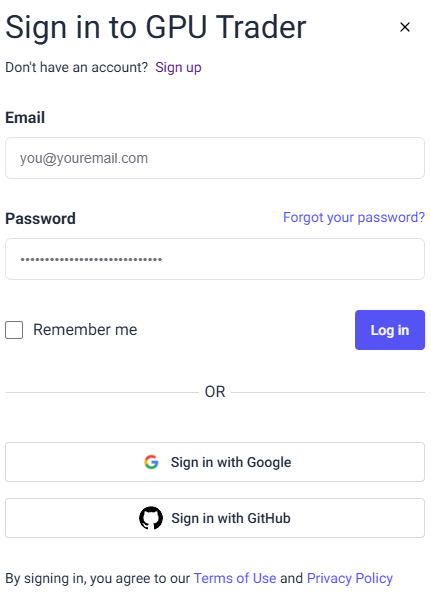
Start by [signing in](https://console.gputrader.io) or creating an account on GPU Trader. If you need help, watch the GPU Trader [Quickstart](/quickstart) or read the [docs](/renters/signin).
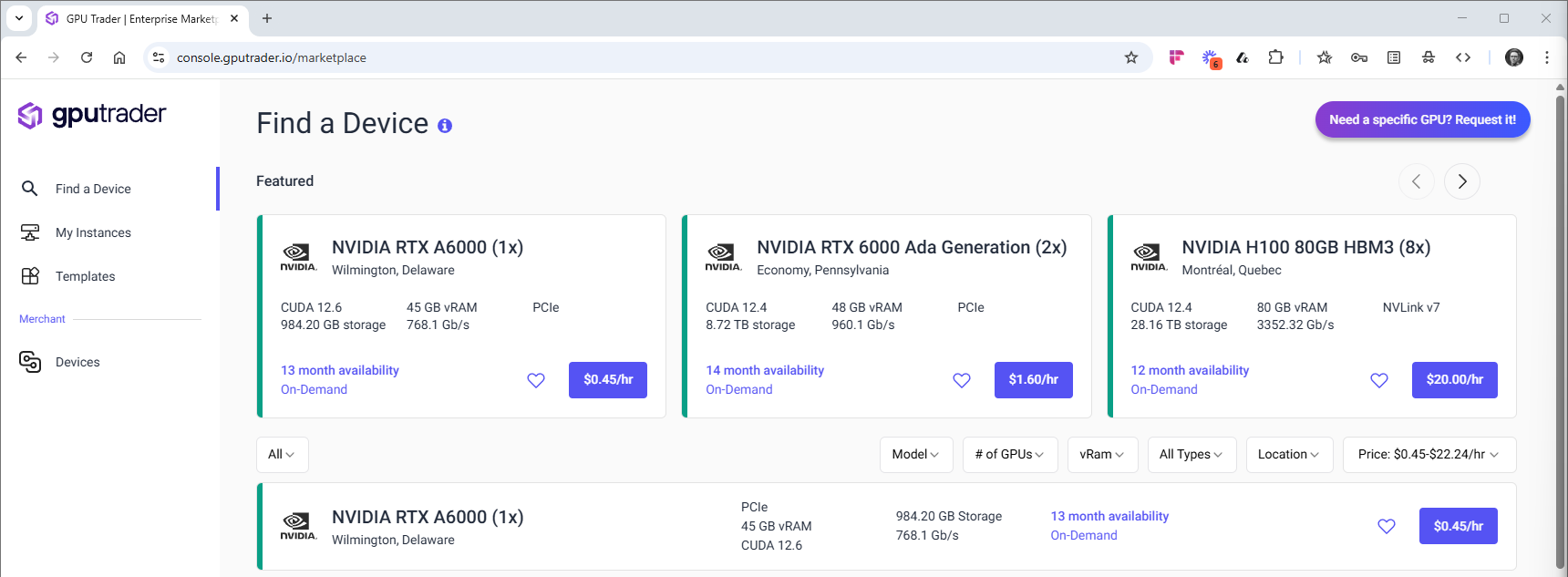
 Use the Find a Device page to browse available GPUs. Filter by model, price, or provider to select a system that meets ComfyUI’s requirements.
 Once selected, rent the instance directly from the dashboard.
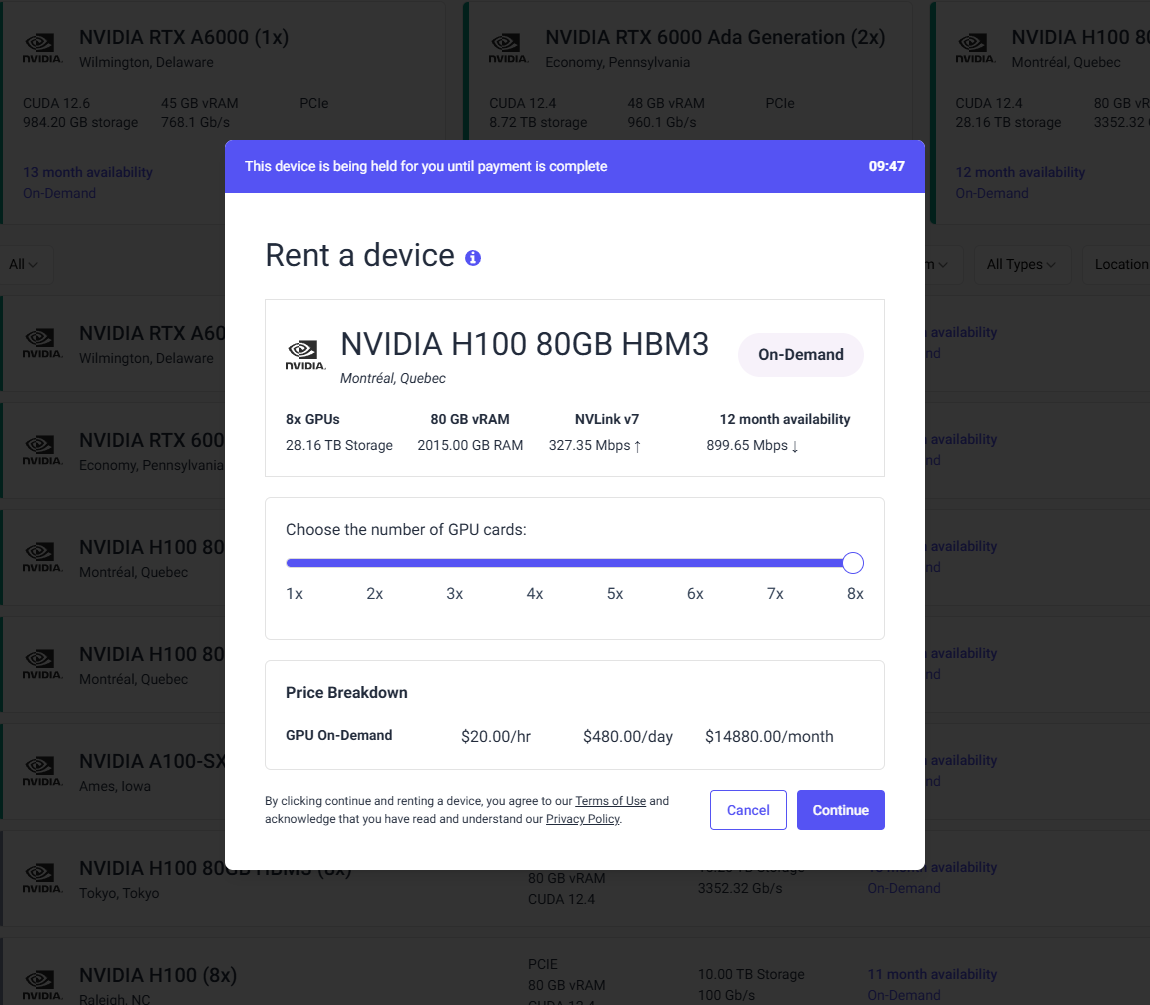 Remember that ComfyUI only needs a single card. Either find a single card instance or use GPU Trader's card configurability feature to configure your instance with a single card.
Need more help? Read the [docs](/renters/find-an-instance) on finding and renting an instance.
After renting your instance, configure it with GPU Trader's pre-built template ComfyUI template. To deploy them template click "Add Stack", browse and select the ComfyUI template. Click "Use Template."
Remember that ComfyUI only needs a single card. Either find a single card instance or use GPU Trader's card configurability feature to configure your instance with a single card.
Need more help? Read the [docs](/renters/find-an-instance) on finding and renting an instance.
After renting your instance, configure it with GPU Trader's pre-built template ComfyUI template. To deploy them template click "Add Stack", browse and select the ComfyUI template. Click "Use Template."
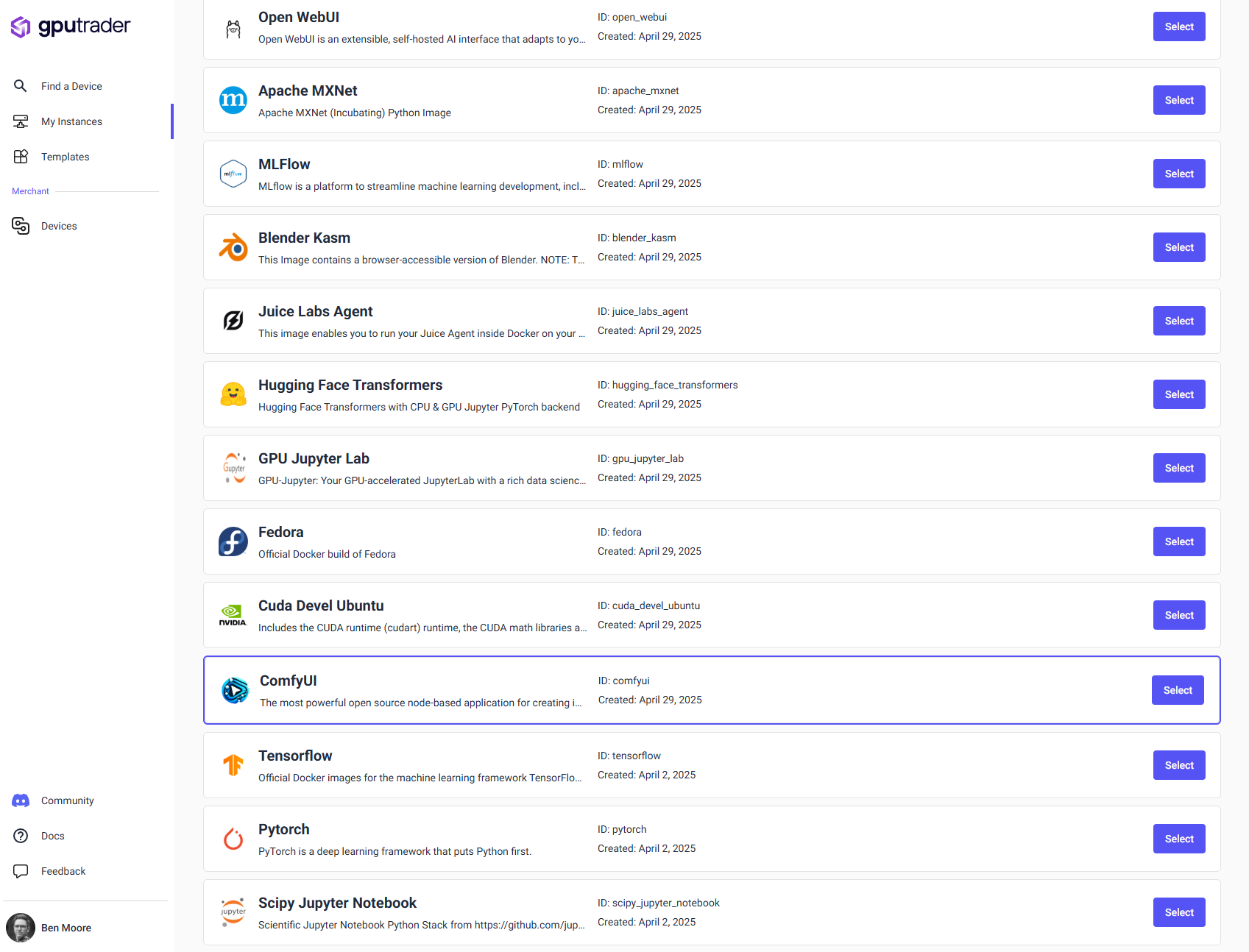
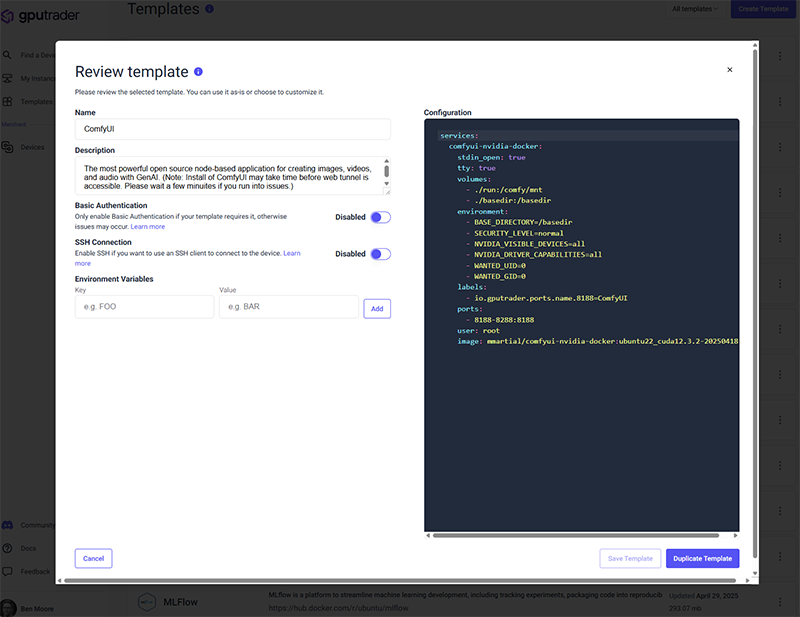 Template:
```YAML theme={null}
services:
comfyui-nvidia-docker:
stdin_open: true
tty: true
volumes:
- ./run:/comfy/mnt
- ./basedir:/basedir
environment:
- BASE_DIRECTORY=/basedir
- SECURITY_LEVEL=normal
- NVIDIA_VISIBLE_DEVICES=all
- NVIDIA_DRIVER_CAPABILITIES=all
- WANTED_UID=0
- WANTED_GID=0
labels:
- io.gputrader.ports.name.8188=ComfyUI
ports:
- 8188-8288:8188
user: root
image: mmartial/comfyui-nvidia-docker:ubuntu22_cuda12.3.2-20250418
```
Need more help? Read the [docs](/renters/managing-an-instance) on managing an instance or [templates](/renters/templates).
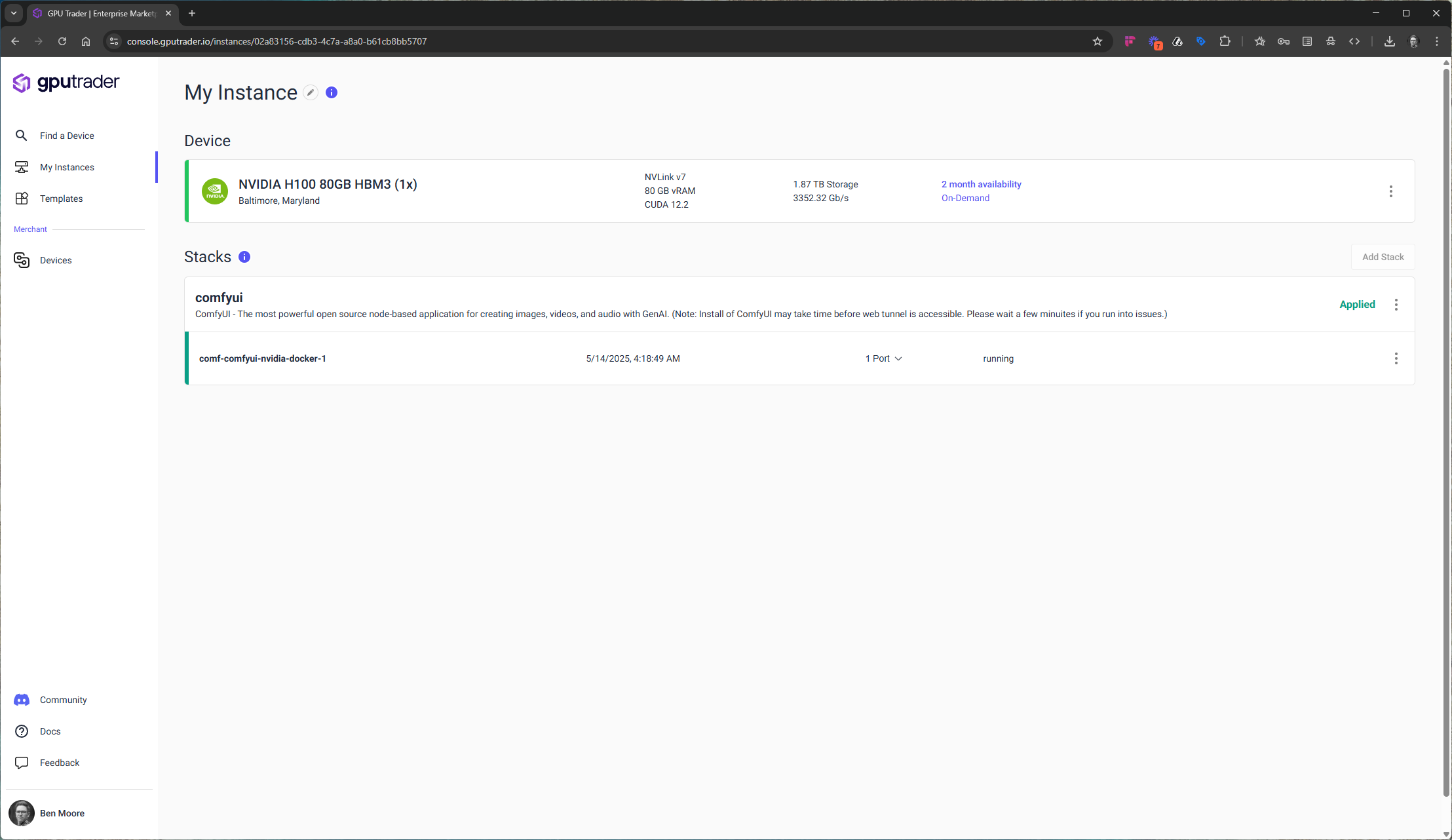
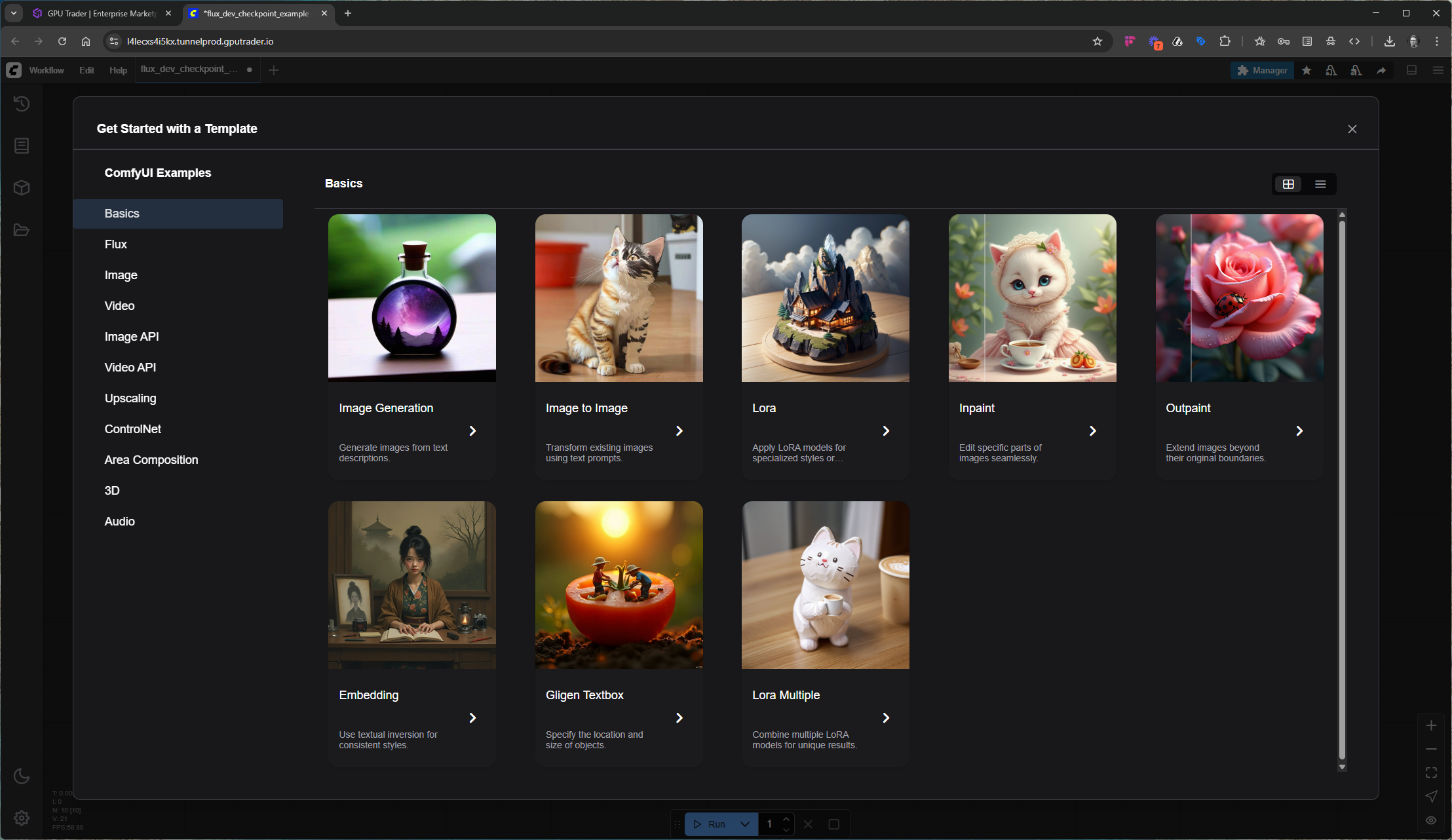
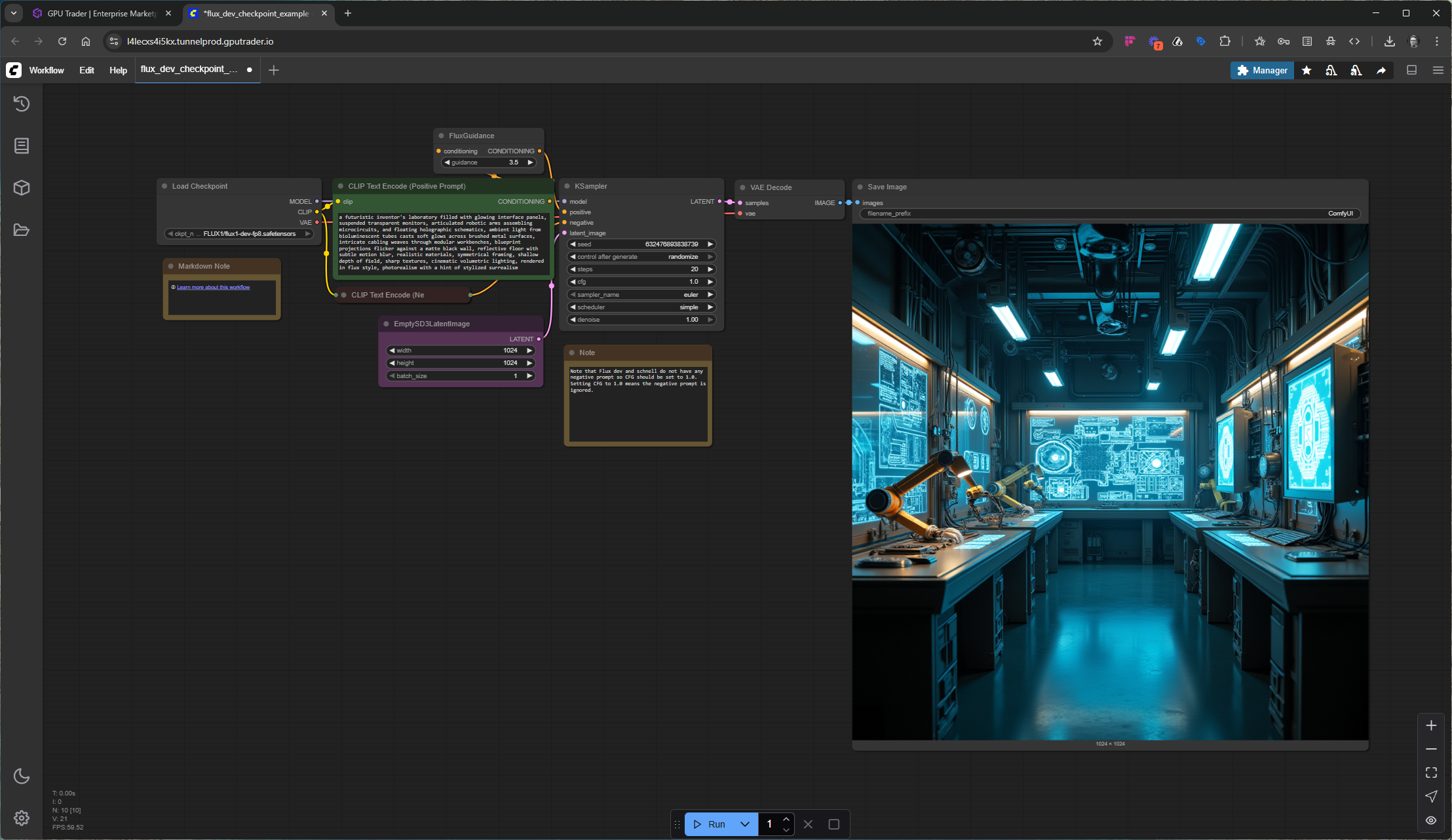
Once ComfyUI is installed, launch the application by selecting the port dropdown or kebab menu to access the UI from your browser. Now you can load your models, LoRAs, or custom workflows and start building.
Template:
```YAML theme={null}
services:
comfyui-nvidia-docker:
stdin_open: true
tty: true
volumes:
- ./run:/comfy/mnt
- ./basedir:/basedir
environment:
- BASE_DIRECTORY=/basedir
- SECURITY_LEVEL=normal
- NVIDIA_VISIBLE_DEVICES=all
- NVIDIA_DRIVER_CAPABILITIES=all
- WANTED_UID=0
- WANTED_GID=0
labels:
- io.gputrader.ports.name.8188=ComfyUI
ports:
- 8188-8288:8188
user: root
image: mmartial/comfyui-nvidia-docker:ubuntu22_cuda12.3.2-20250418
```
Need more help? Read the [docs](/renters/managing-an-instance) on managing an instance or [templates](/renters/templates).
Once ComfyUI is installed, launch the application by selecting the port dropdown or kebab menu to access the UI from your browser. Now you can load your models, LoRAs, or custom workflows and start building.
 ## Get Started with ComfyUI
We will be the first to tell you, we are not experts in ComfyUI even though we think it is really fun. If you are new to ComfyUI the best way to get started is to use the ComfyUI documentation or follow many of the tutorials that exist online. Here is a list of resources that we find helpful. Let us know what worked for you and we will add it to the list.
### Resources
#### Docs
* [ComfyUI Documentation](https://docs.comfy.org/get_started/introduction)
#### Reddit
* [/r/comfyui](https://www.reddit.com/r/comfyui/)
#### YouTube
* [Creative Exploration with Purz](https://www.youtube.com/@purzbeats)
## Get Started with ComfyUI
We will be the first to tell you, we are not experts in ComfyUI even though we think it is really fun. If you are new to ComfyUI the best way to get started is to use the ComfyUI documentation or follow many of the tutorials that exist online. Here is a list of resources that we find helpful. Let us know what worked for you and we will add it to the list.
### Resources
#### Docs
* [ComfyUI Documentation](https://docs.comfy.org/get_started/introduction)
#### Reddit
* [/r/comfyui](https://www.reddit.com/r/comfyui/)
#### YouTube
* [Creative Exploration with Purz](https://www.youtube.com/@purzbeats)